Launching soon · Pay once, no subscription

Create beautiful screen recordings from raw clips, in minutes.

The Mac screen recorder with auto-zoom, cursor smoothing and captions built in. Product demos, tutorials and walkthroughs come out finished, with no editing.

Download for Mac

macOS 26 or later · Launch price $59, pay once · 30-day refund

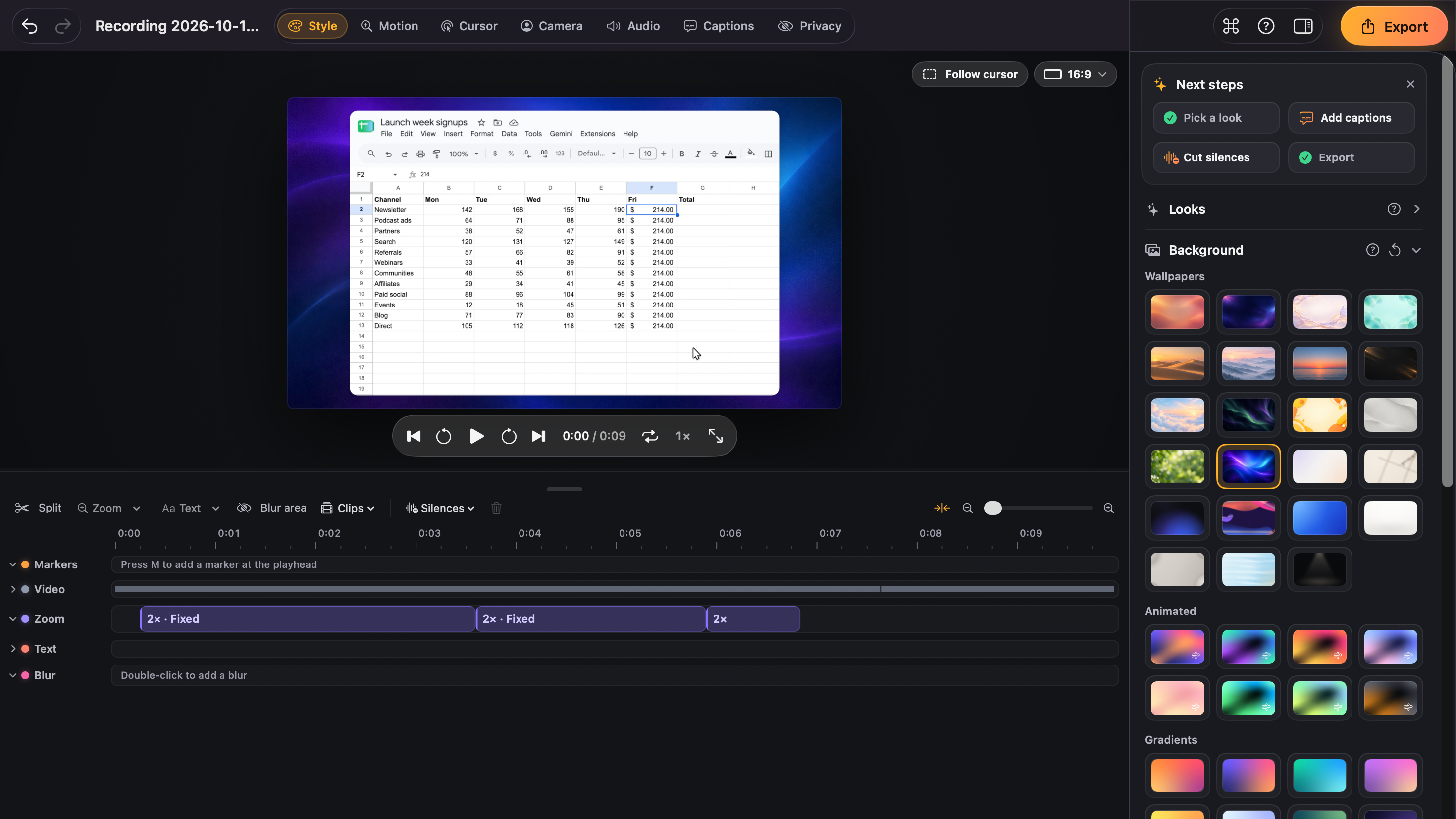
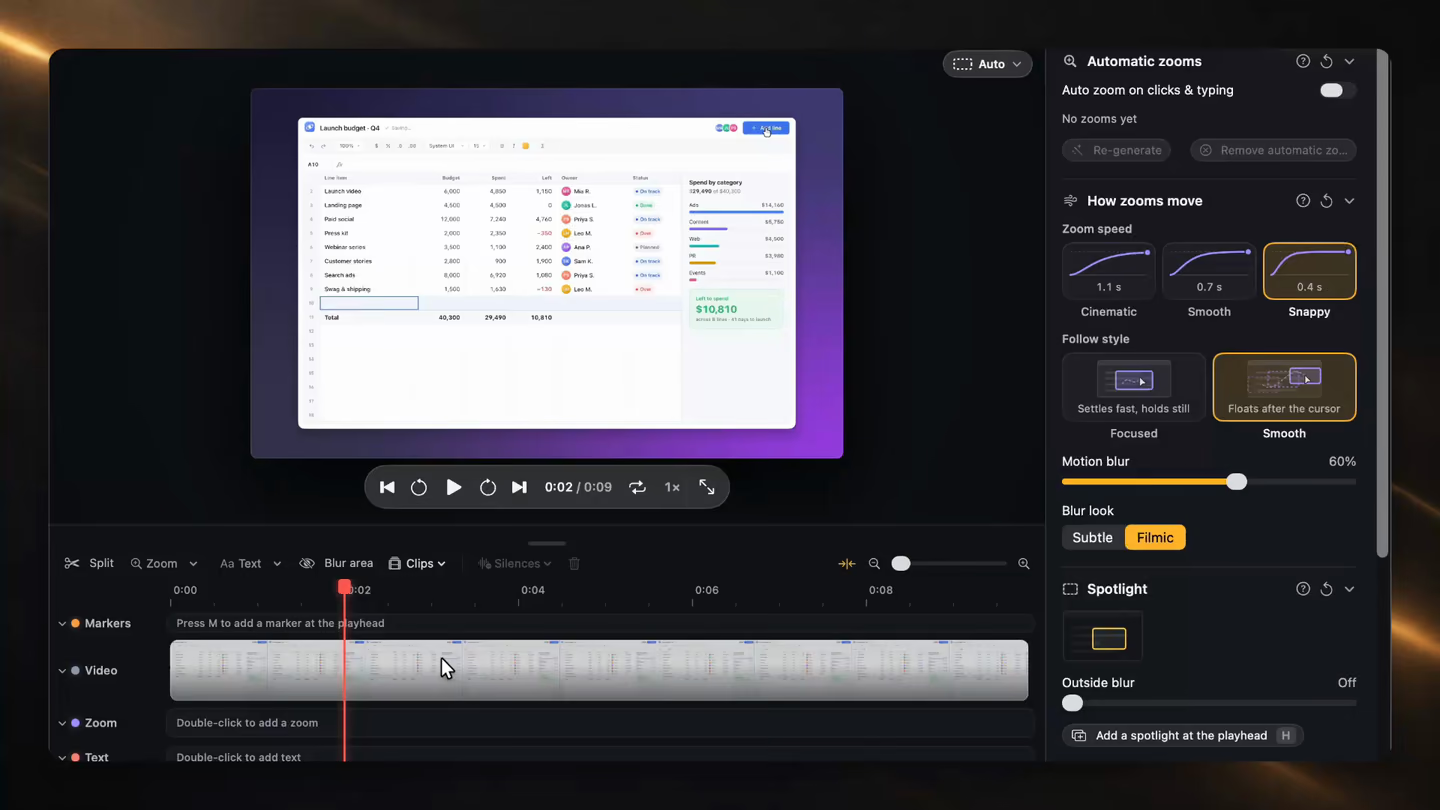
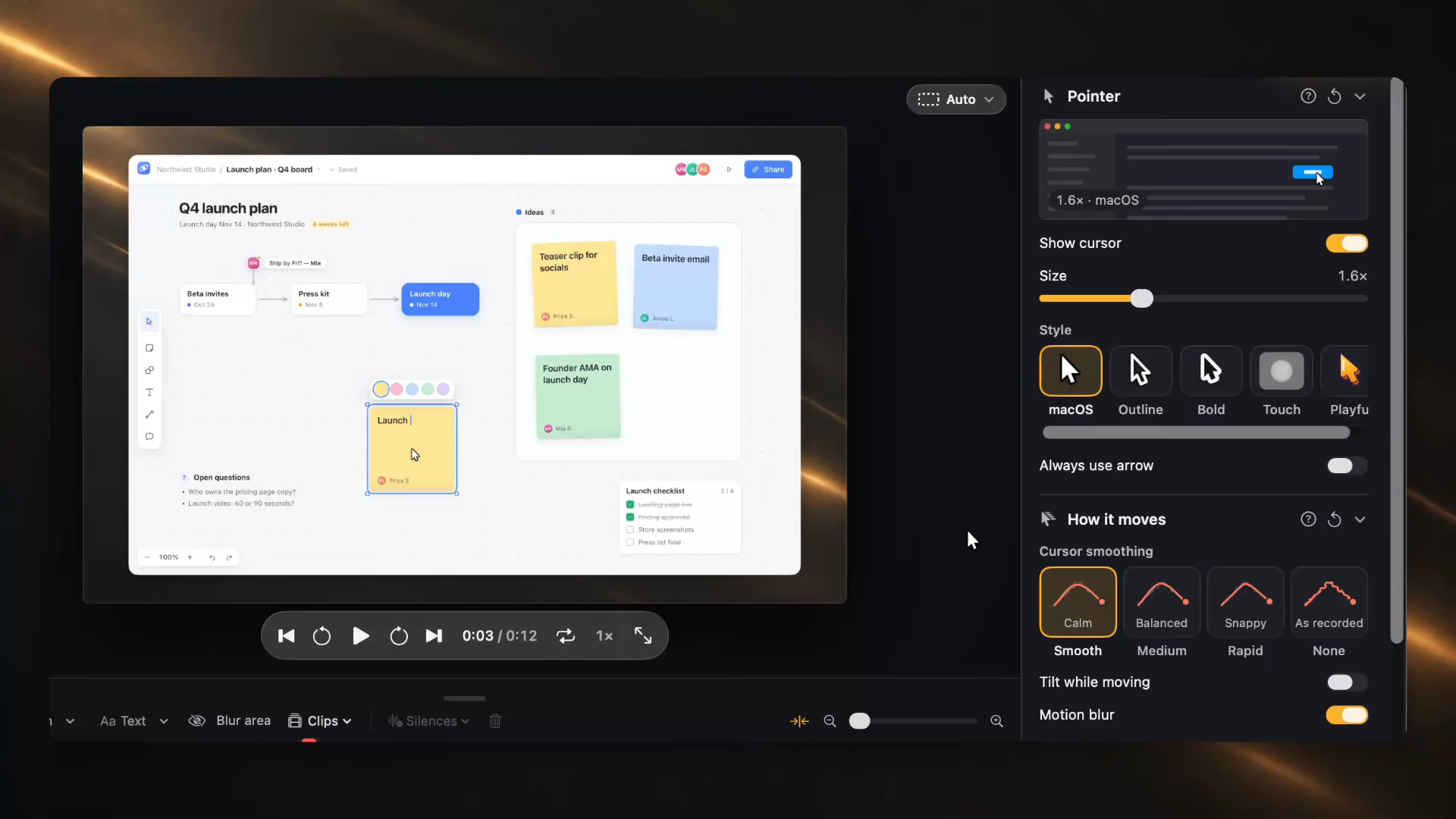
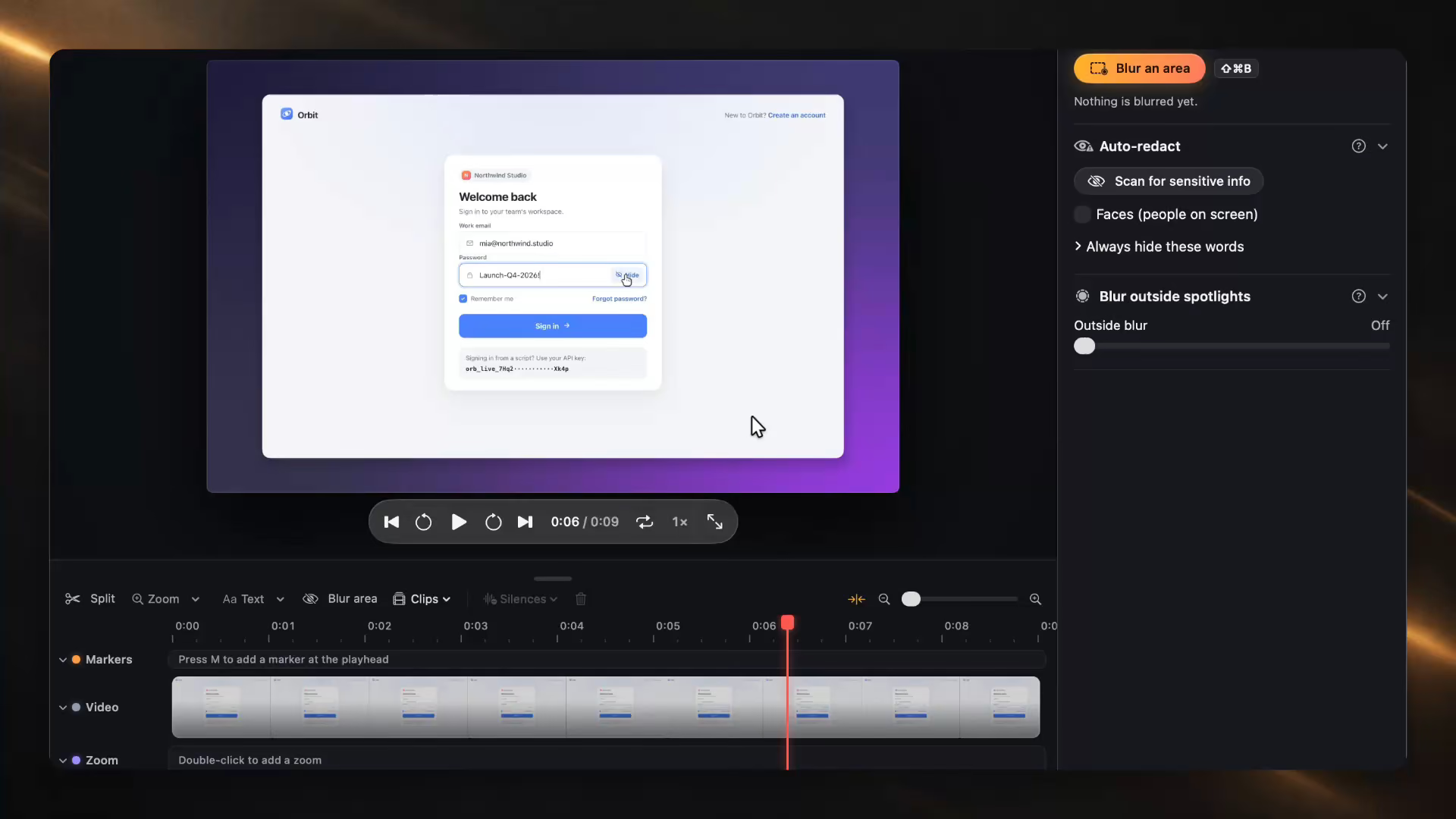
Every zoom and camera change is a block on the timeline, ready to adjust.

Features , 10 chapters below

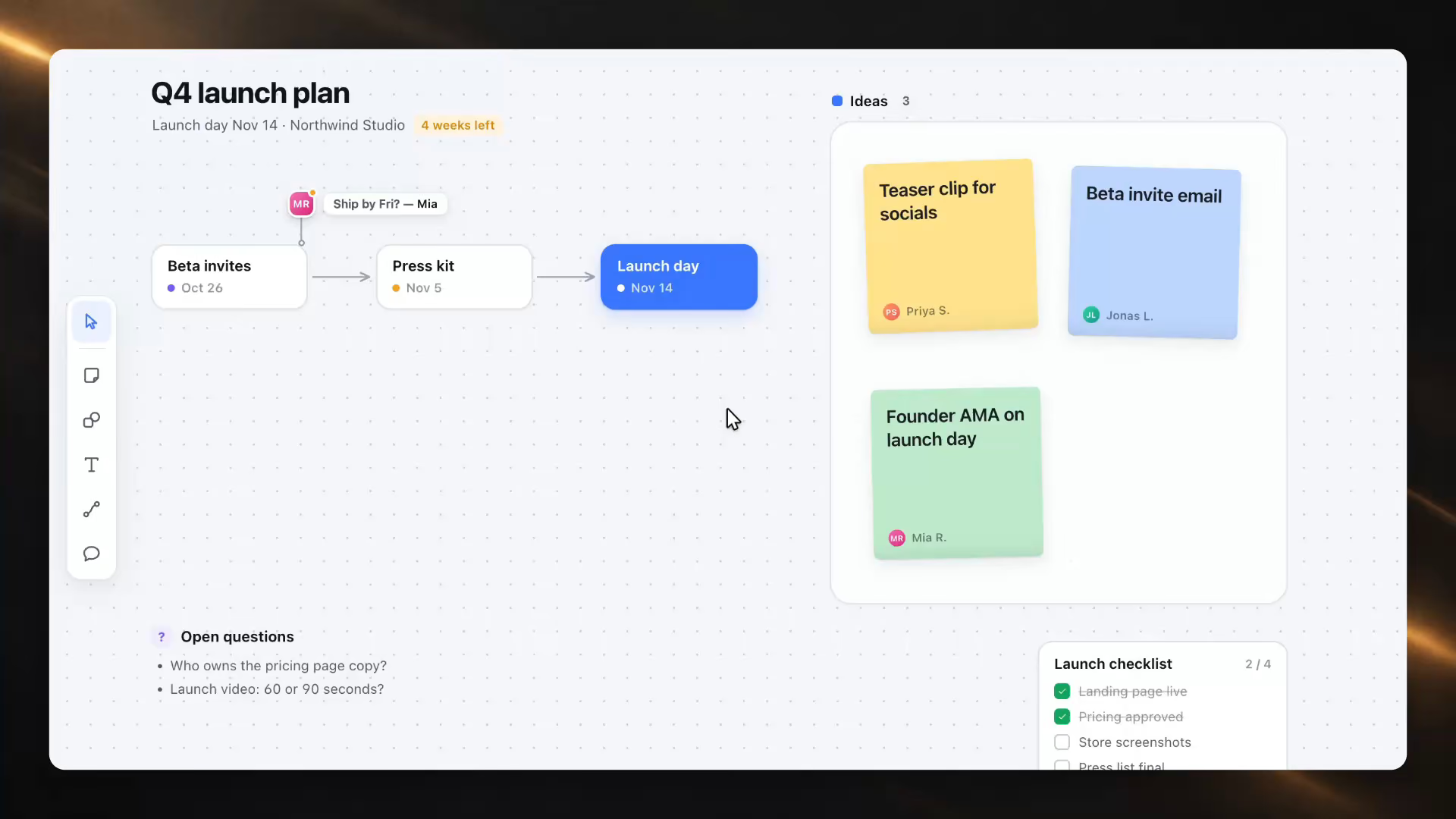
Automatic zoom for screen recordings, wherever you click.

ScreenCameo follows your clicks, typing and drags as you record, then adds smooth zooms to those moments automatically. They're waiting in the editor, ready to adjust.


  • Your edits stay put. Re-generate plans the automatic zooms again and leaves every zoom you added or changed alone.
  • Pick the pace. Cinematic, Smooth, Snappy or Instant for each zoom, plus one Feel setting for the whole video.
  • Follow or hold. Follow clicks keeps up with what you do. Fixed point keeps the camera still while people read.
  • Clean corners. Zooms near the edge of the screen snap to it, so corners look tidy with no sliver at the side.
  • Motion blur built in. Camera moves get a touch of blur, rendered on your Mac’s GPU, so zooms feel filmed rather than slid.
  • Start over anytime. Remove automatic zooms clears them in one go. Hold Option while editing a zoom to peek at the result.

A smooth cursor and click effects for screen recordings.

ScreenCameo smooths your pointer's path and redraws it as vector art, so it stays crisp at 4K and deep zoom. Every click lands exactly where you made it.


  • Shortcuts on screen. Press Cmd + K and a small pill shows it. Plain typing never appears, and keystroke capture is opt-in.
  • Out of sight when still. Hide when not moving fades the pointer while you pause and brings it back the moment you move.
  • Seamless loops. Loop back to start returns the cursor to where it began, so GIFs and looping clips repeat cleanly.
  • A little life. Tilt while moving and motion blur give fast moves a natural swing. Always use arrow keeps one tidy pointer.
  • Section by section. Hide the cursor or switch off smoothing for one part of a video and leave the rest as it is.
  • A calm last frame. Stop moving at the end lets the pointer come to rest, so the video finishes on a still, clean shot.

Record your screen and webcam together, in any layout.

Record your Mac’s camera, an external webcam or Continuity Camera alongside your screen. It’s saved as its own track, so you can change the layout and style later.


  • Layouts on the timeline. Switch between Bubble, Side by side, Camera only and Hidden at any moment. Each change glides into place.
  • Hide the room. Blur or Studio separates you from what’s behind you, using person detection that never leaves your Mac.
  • Out of the cursor’s way. Work near the bubble and it slides to the other side. Zoom in and it shrinks, so your screen stays clear.
  • Shape it your way. Circle or Rounded, any of the four corners, any size, and mirrored if you like.
  • Place it as you record. Drag the live bubble anywhere and resize it on the fly. The corner you leave it in is where it starts in the editor.
  • Every source apart. Camera, screen, mic and Mac sound stay separate, so you can change one without touching the rest.

Backgrounds and frames for screen recordings, in one click.

Wallpapers, animated backgrounds, gradients and nine device frames with a gentle 3D tilt. Pick a Look and your recording is framed in one click, then fine-tune any detail.

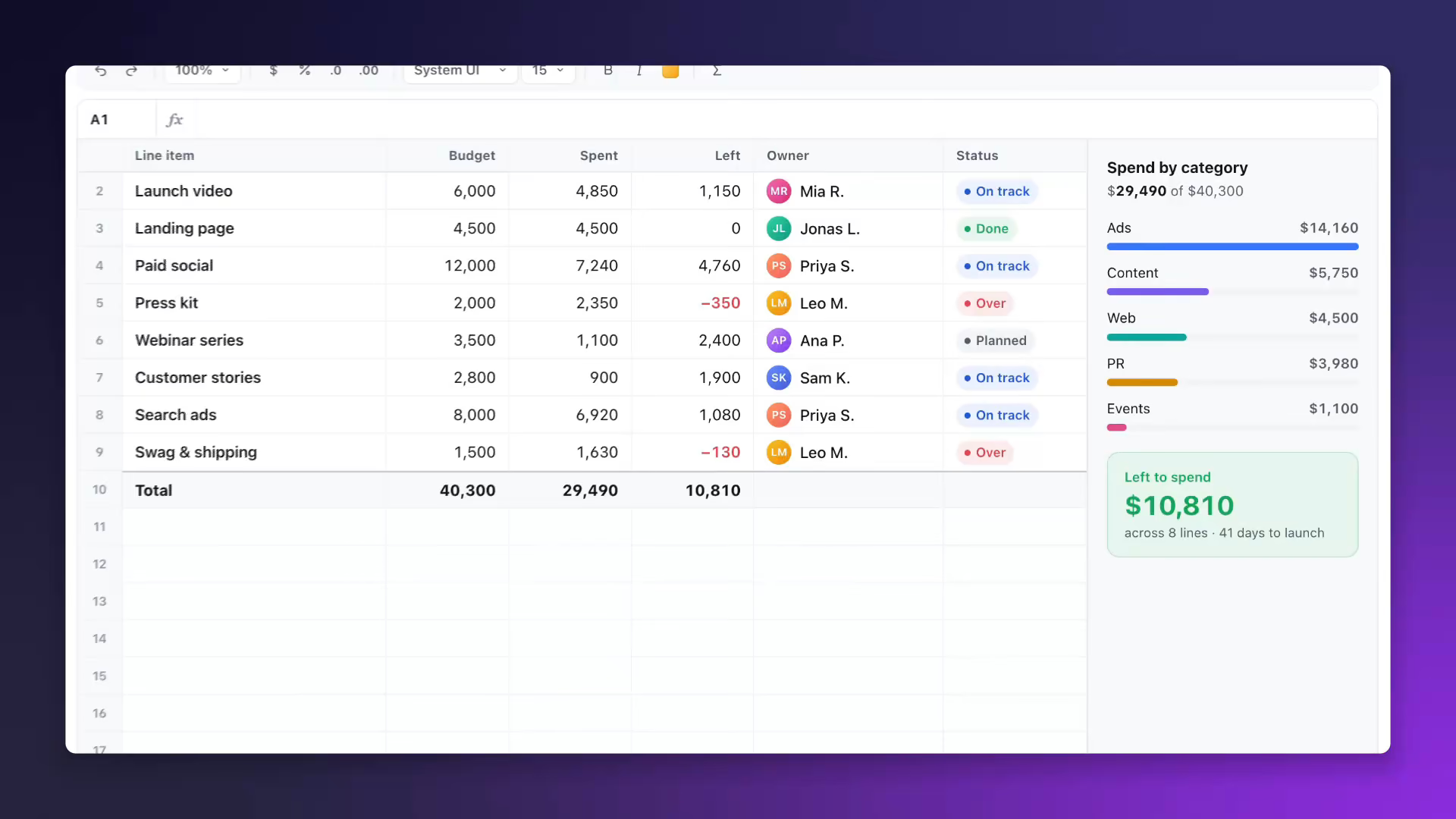
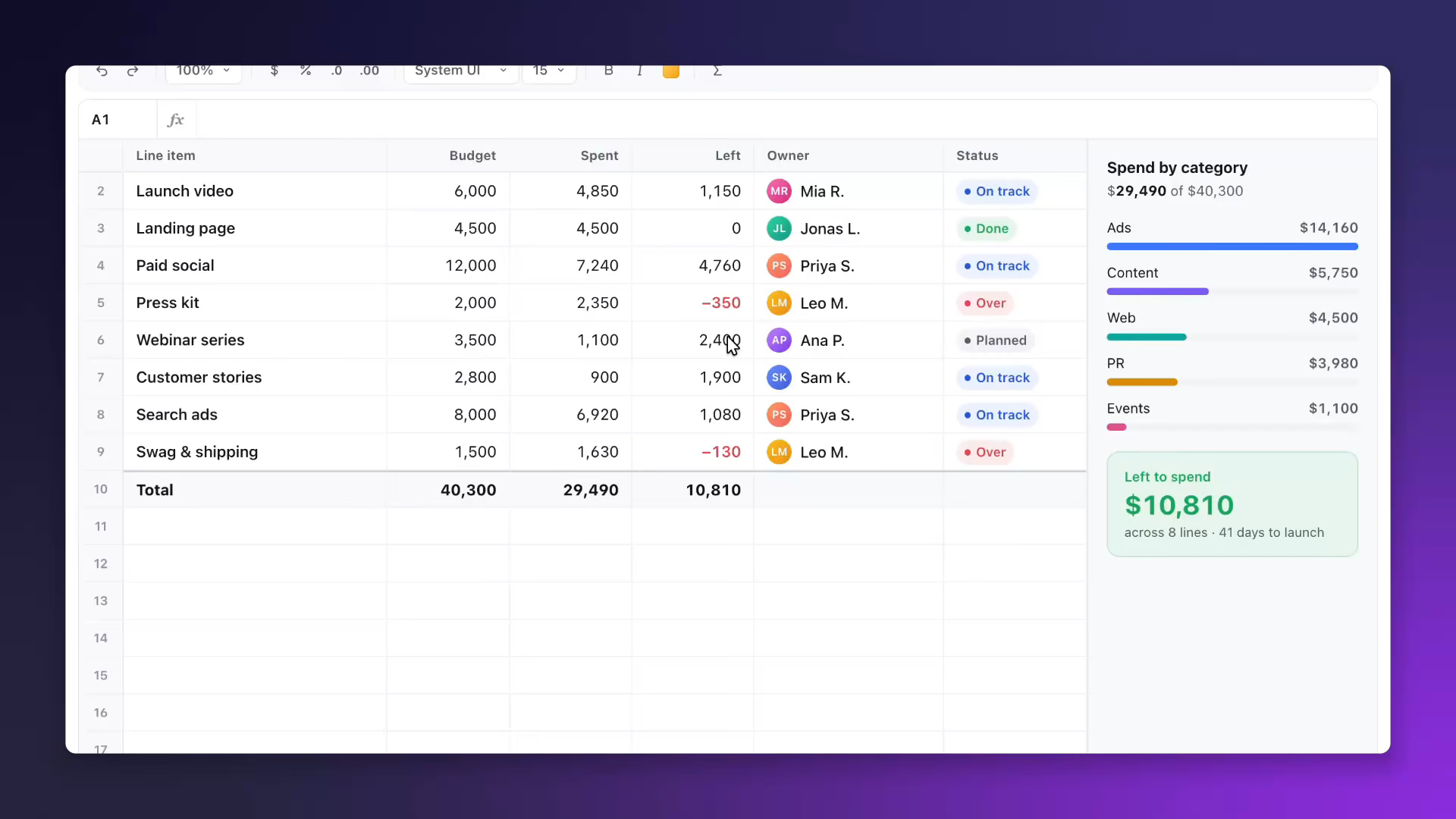
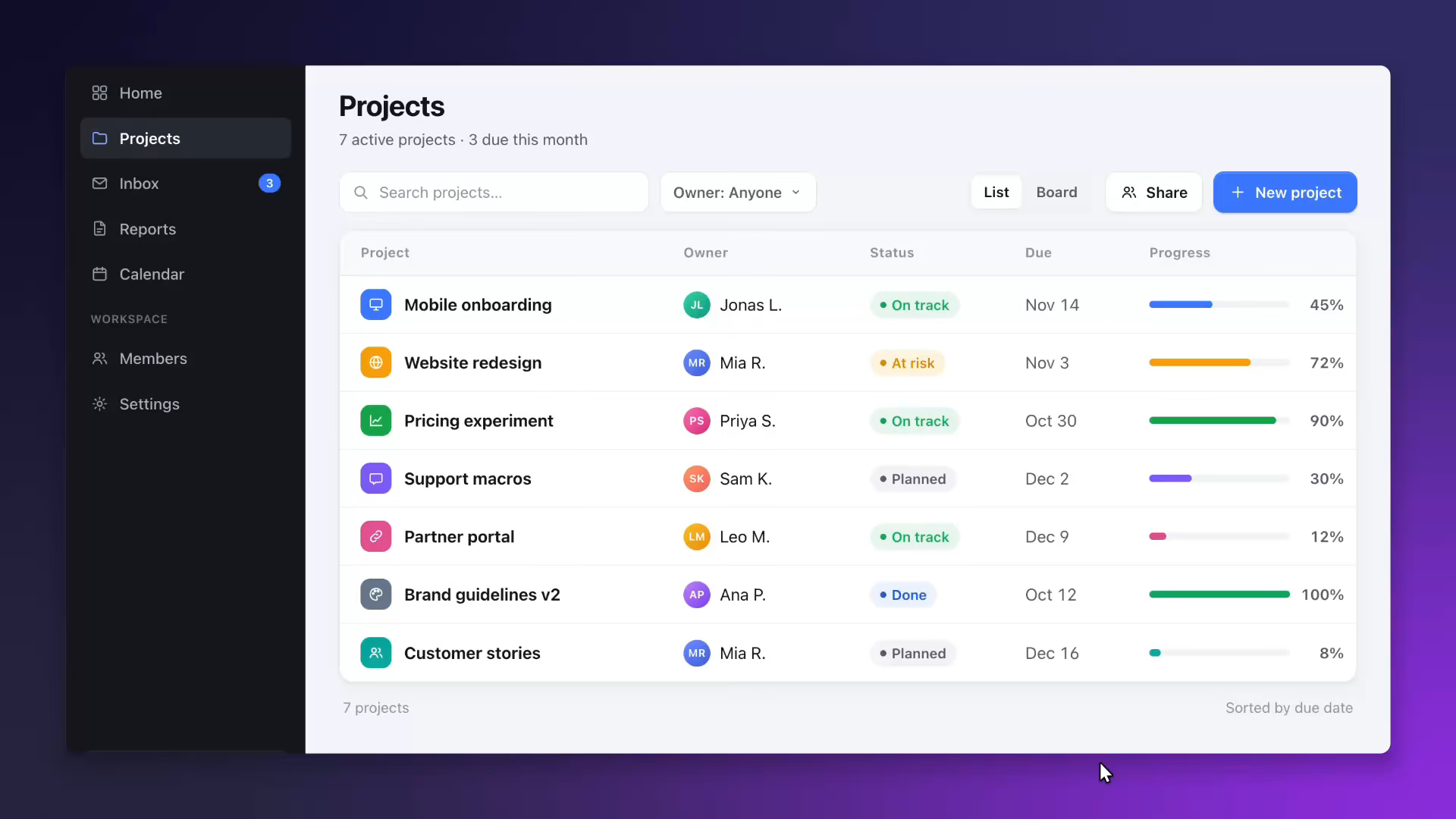
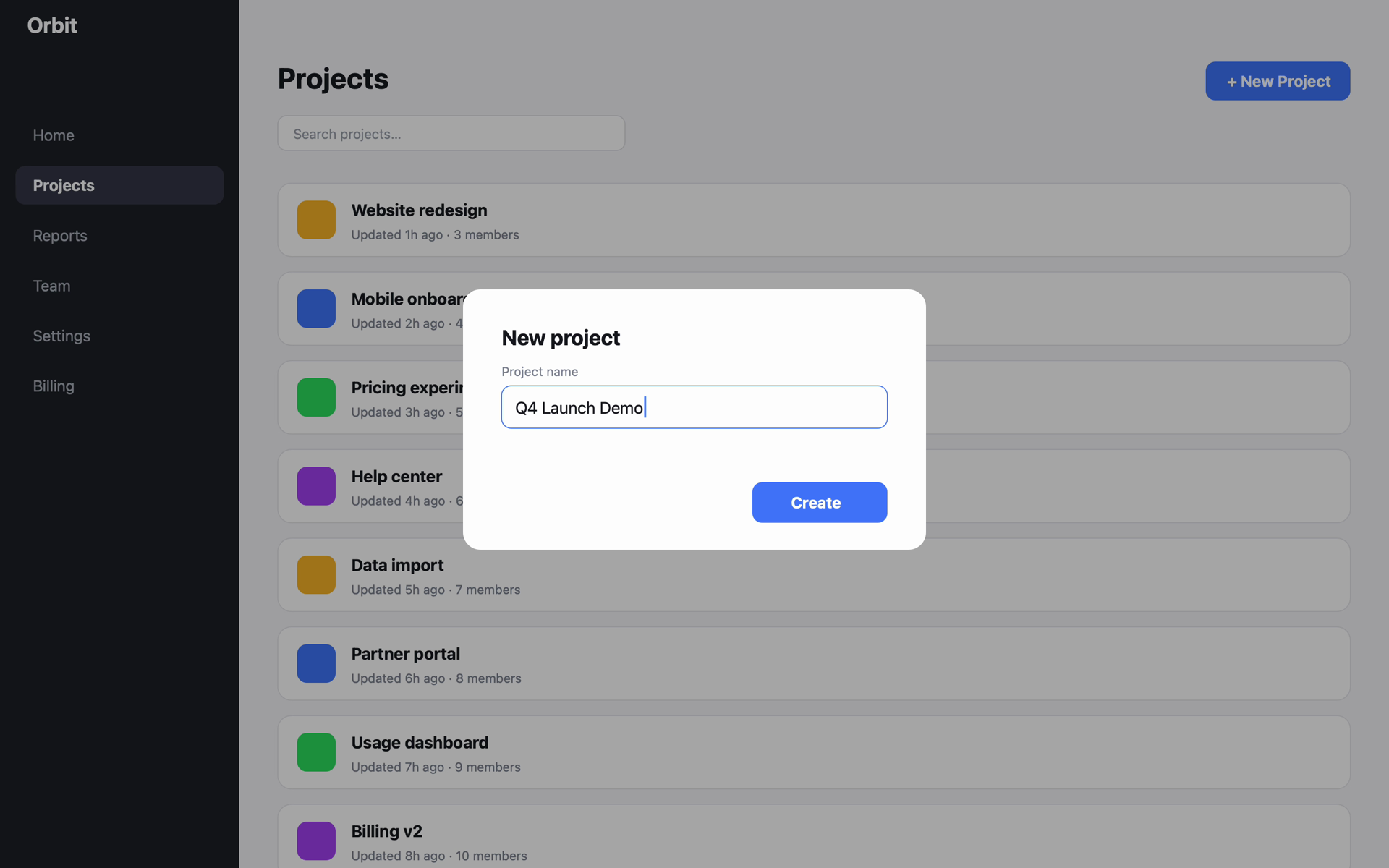
A raw, unedited ScreenCameo capture of a project app with its New project dialog open

Try the look

A raw ScreenCameo capture, restyled live in your browser. The editor has these controls and many more.

Background Neon
Frame
3D tilt needs a frame
Aspect
9 %
14

In the app you can also type an exact padding and add an inset border.


  • Looks you can keep. Start from 10 built-in Looks, save your own, and make one the default for every new recording.
  • Use My Desktop. Put your own desktop picture behind the video, or any image you like, softened with background blur.
  • The right device, suggested. ScreenCameo picks a device that suits the recording's shape, so vertical takes land on iPhone.

Automatic captions and subtitles, made on your Mac.

Apple's on-device speech engine turns what you say into captions, with nothing uploaded. Then pick a style, translate them, or cut the video by deleting words.

English · transcribed on your Mac
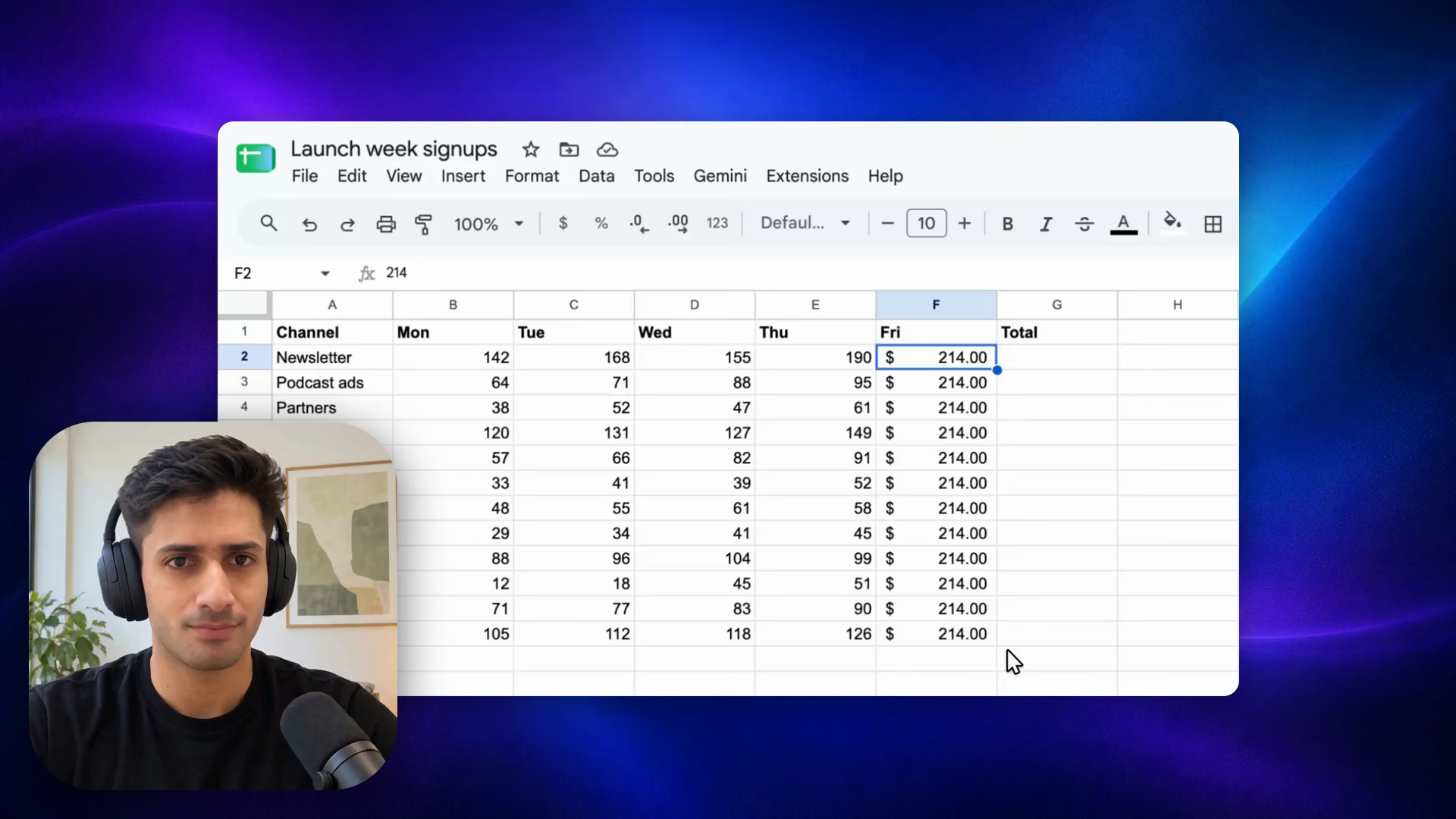
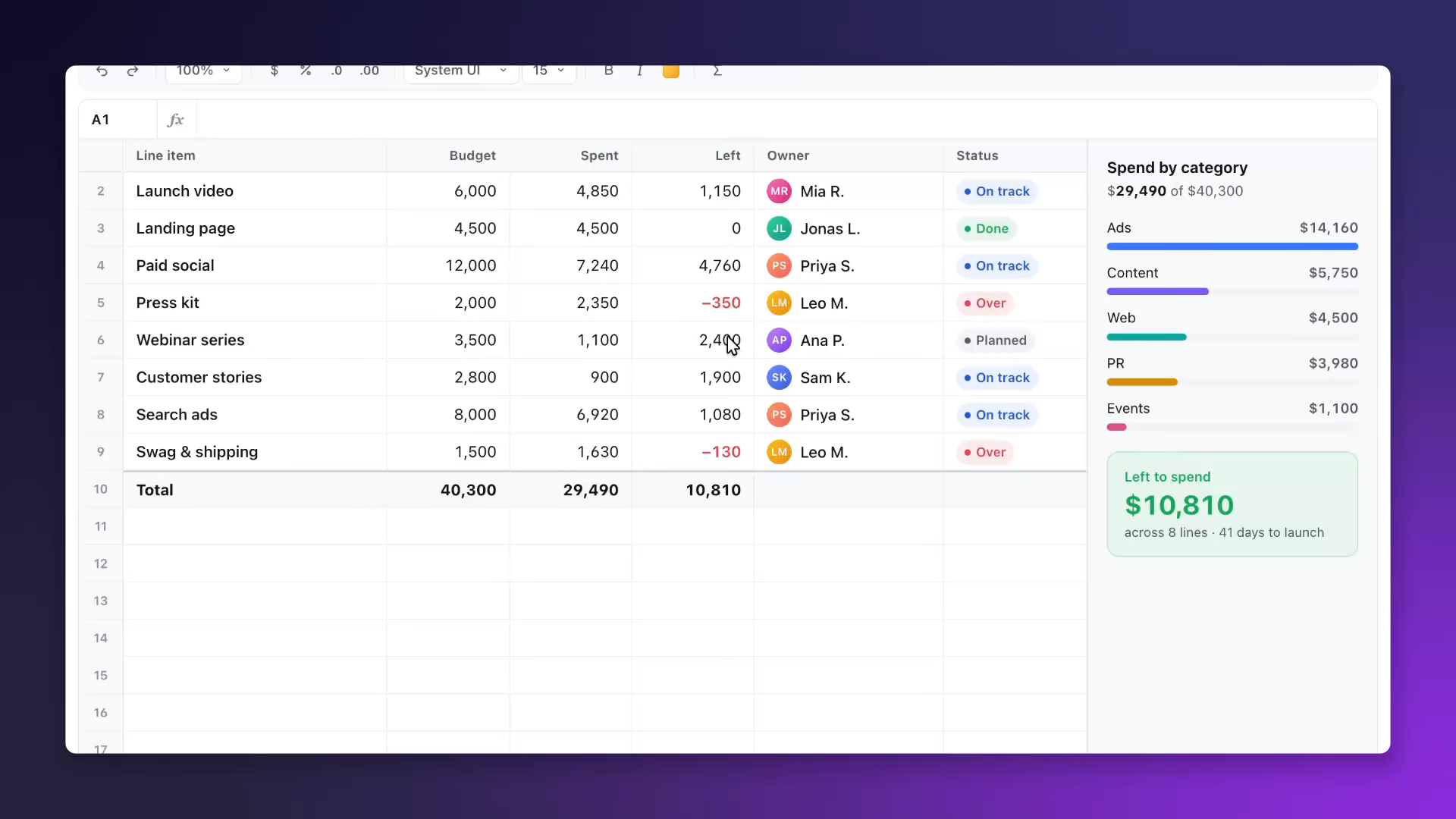
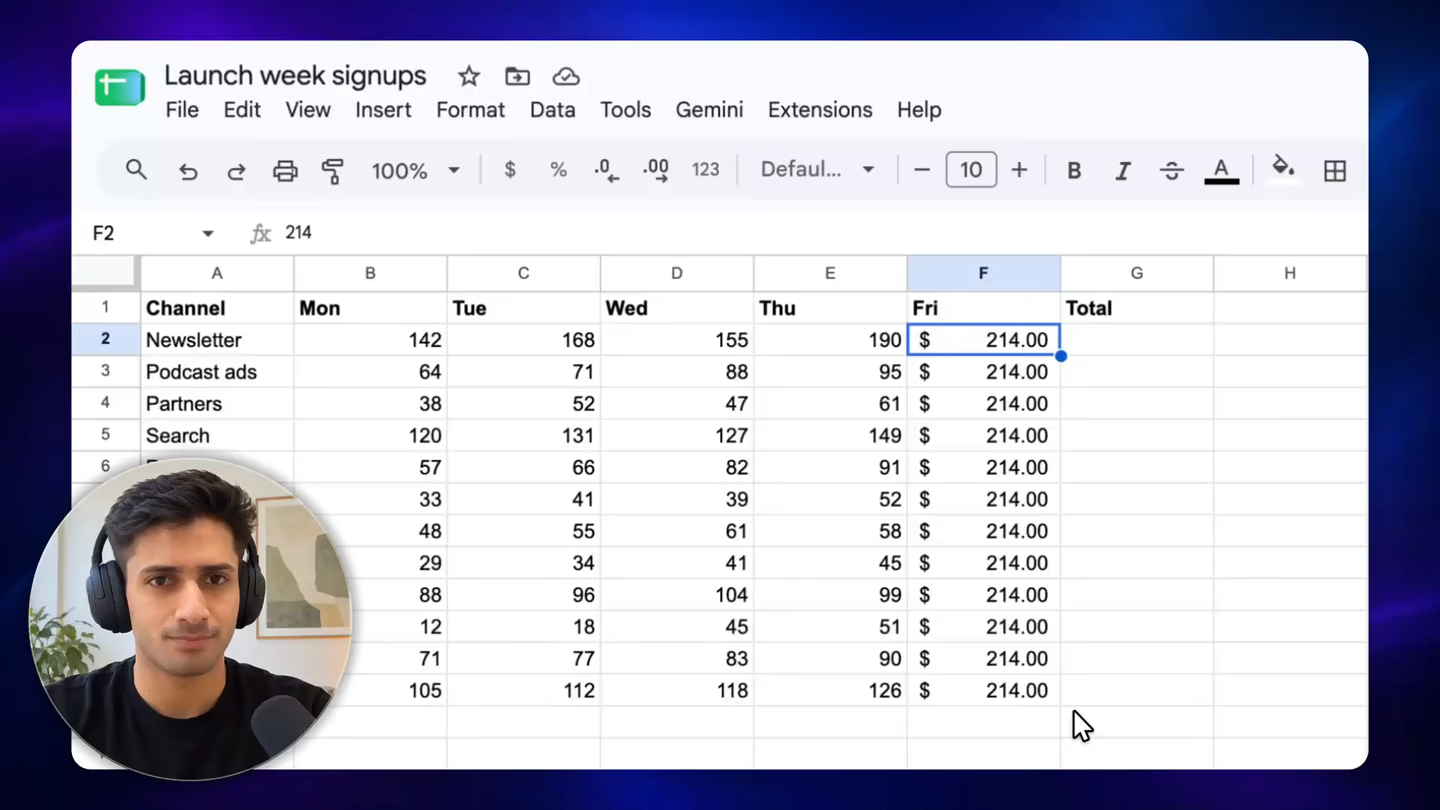
The hero clip, a real ScreenCameo export of a Google Sheet, with captions that narrate each step. Use the buttons below to change the caption style and language.

Translate into 12 languages, including French, Portuguese, Korean, Chinese and Arabic. Translated lines show in full; word-by-word highlights follow the original language.


  • Private by design. Transcription runs on Apple's SpeechAnalyzer in macOS 26. If the speech model isn't on your Mac yet, it downloads by itself.
  • Works on every clip. Imported videos and extra takes get captions too, and each line stays with its clip when you reorder.
  • Subtitles, your way. Burn captions into the video or turn that off, fix any line by hand, and export .srt, .vtt or a .txt transcript.

A built-in video editor: trim, split, add clips and transitions.

Split, trim, add more clips, transitions, titles and music on a real timeline, without exporting to another editor. The preview and the export use the same renderer, so what you see is what you get.

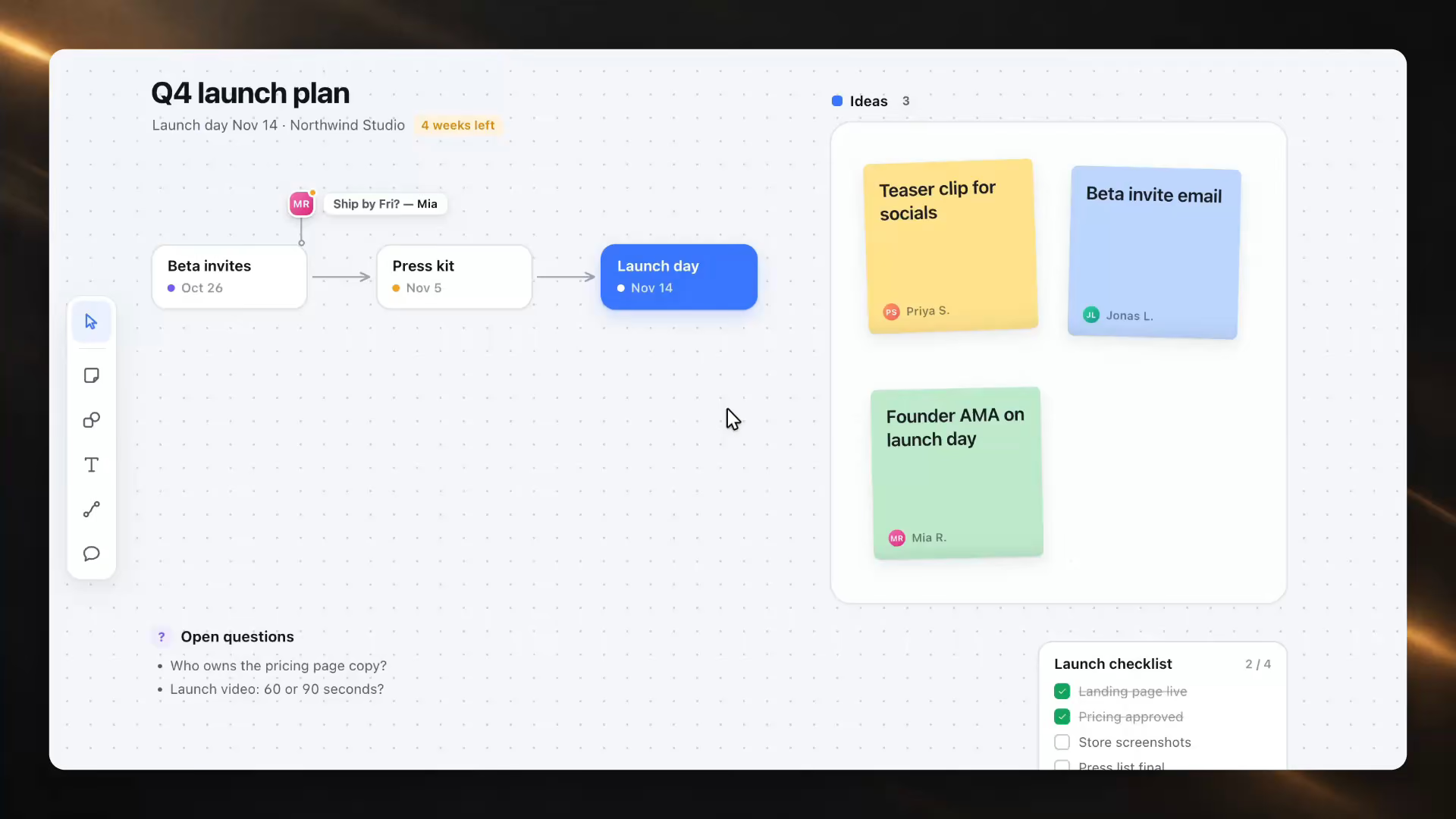
Animation of the ScreenCameo editor building one launch walkthrough: raw clips are dragged from a tray onto the timeline, the projects clip is dropped between the intro and the recording while the rest slide over, the recording is split and the launch board clip goes into the cut, a crossfade and a slide are added, and the preview plays the result.


  • Split, trim, close the gap. Press S or Cmd + B to split, drag an edge to trim, and the gap closes when you delete.
  • Speed that still sounds like you. Play any clip from 0.5× to 8× and your voice keeps its pitch. Mute it or set its own volume.
  • Cleaner audio. Enhance voice uses Apple's voice isolation and evens out loudness. Mic and Mac sound get separate volumes.
  • Start from anything. Create a project from videos you already have, or use Record Another Take to add to this one.
  • A lane for everything. Video, Zoom, Camera, Text, Privacy and Captions, with a filmstrip, a waveform and snapping.
  • Edit without worry. Undo and redo, autosave, and J, K and L to move through the timeline like a pro.

Resize screen recordings for YouTube, TikTok and Instagram.

Choose widescreen, vertical, square or one of 19 platform presets. Vertical and square versions follow your cursor, so the action stays in frame, and you can export every shape at once.

Pick a shape from the Output shape menu, or search for one. Follow cursor keeps the action in frame.

  • MP4 up to 4K. 720p to 4K or Original, at 24, 30 or 60 fps and three quality levels, with a file-size estimate. H.264 up to 1080p, HEVC above.
  • Exports in the background. Keep editing while it works. Your Mac stays awake until the last file is done.
  • Paste it anywhere. Copy the finished video and paste it into Slack, Messages or email, or use the macOS share sheet.

Hide passwords, API keys and private info in screen recordings.

Drag a blur over a password field, or let on-device text recognition find API keys, emails and card numbers for you. They stay hidden in every frame you export, even as the page scrolls.

Draw a blur over anything, then play: it stays hidden. Blur, Pixelate or Solid.

What the scan looks for

ScreenCameo reads the text in your recording and flags anything that looks private, including API keys in Stripe, OpenAI, Anthropic, AWS, GitHub, Slack, Google and GitLab formats.

  • Email addresses
  • Phone numbers
  • Card numbers
  • IBANs
  • IP addresses
  • Tokens (JWT)
  • Private keys
  • Long random secrets
  • Words you add

It all runs on your Mac. Like any automatic check, it can miss things, so watch the result once before you share it.

Illustration: a settings file with a fake API key, email address, phone number and IP address. A scan line passes over it, each secret is covered by a soft blur box, and the boxes stay on the secrets as the file scrolls.

  • Follows the scroll. Each blur box tracks its text as the page moves, so a secret stays covered for every second it is on screen.
  • You have the final say. Everything the scan finds lands in a review list. Keep it, skip it or jump to it, then choose Blur, Pixelate or Solid.
  • Your words, your screenshots. Add names you always want hidden, like a client’s, and run the same check on a screenshot before you send it.

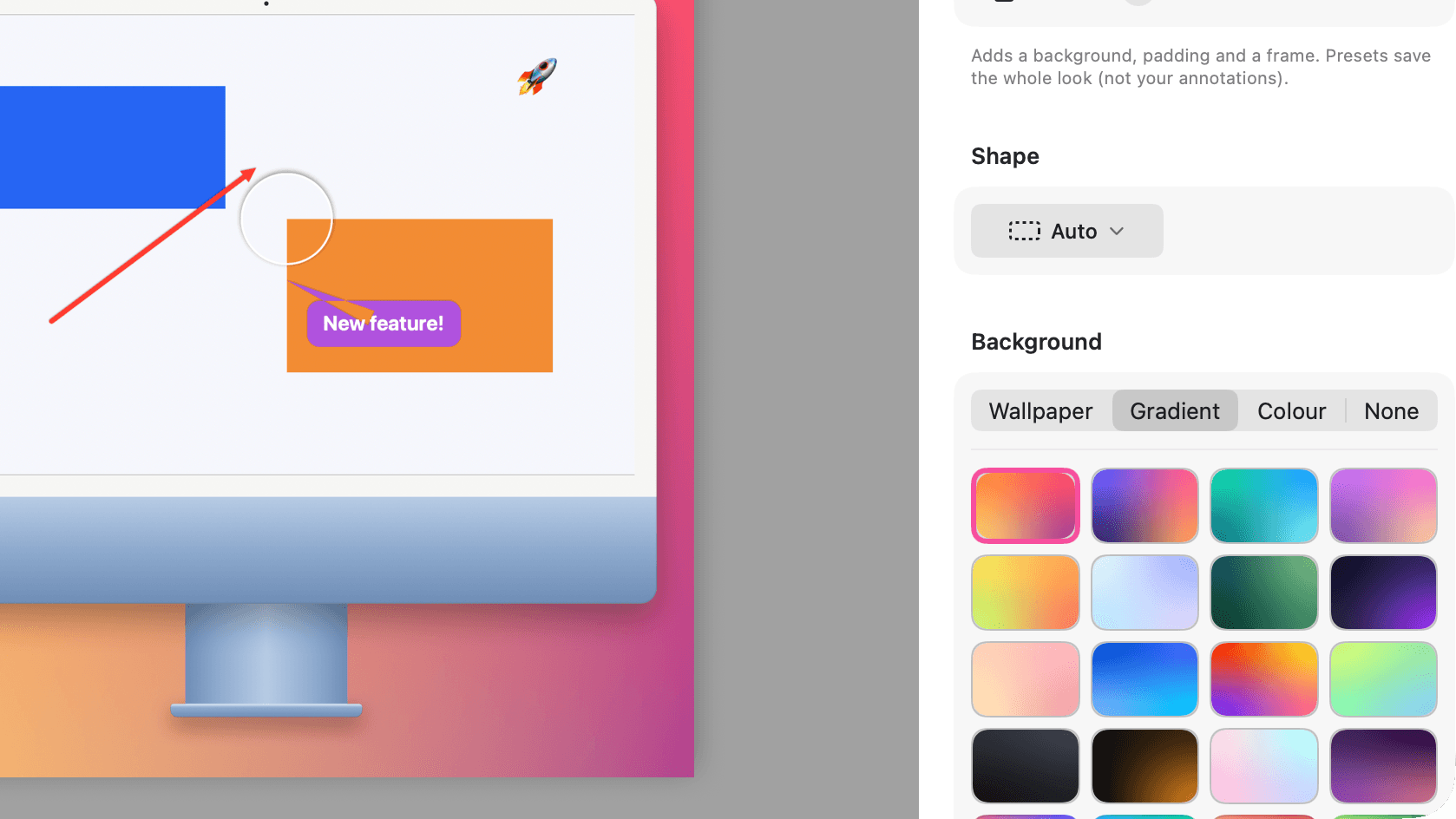
Beautiful Mac screenshots with backgrounds and frames.

Every copy of ScreenCameo includes a full screenshot tool. Freeze the screen, grab an area or a window, then annotate, frame and pin it in a few clicks.

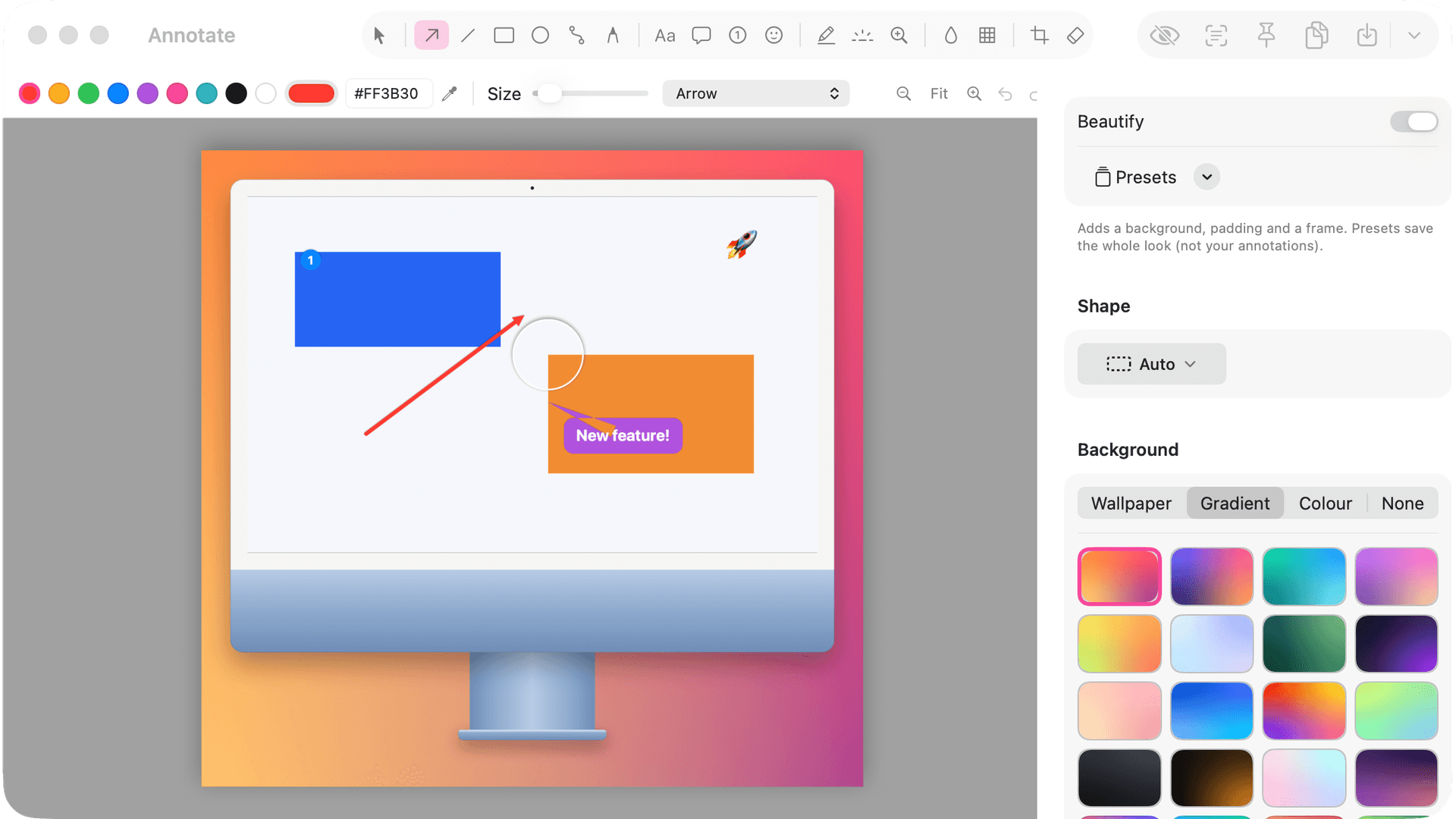
The ScreenCameo screenshot editor adding a bent arrow, self-renumbering step counters, a blur, a spotlight, a callout and a magnifier

Three shortcuts to remember

  • Option + Shift + 4: An area or a window, picked on a frozen screen
  • Option + Shift + 3: The whole screen, in one press
  • Option + Shift + 2: Copy the text from anything on screen

Repeat your last screenshot, wait 1–10 seconds before capturing, or leave out the window shadow. Every shortcut can be changed in Settings.

Every tool you reach for

  • Arrow
  • Line
  • Path
  • Rectangle
  • Filled rectangle
  • Ellipse
  • Pen
  • Highlighter
  • Text
  • Counter
  • Callout
  • Emoji
  • Blur
  • Pixelate
  • Spotlight
  • Magnifier
  • Eraser
  • Crop

Pick any color by HEX code or with the eyedropper, select several shapes at once, snap them to the center and zoom in for detail. Shift-drag with Crop cuts a strip out of the middle.


  • Copy text from anything. Press Option + Shift + 2 and drag over words in a photo, a video or an app that won’t let you select them. Recognition runs on your Mac.
  • Beautify in one panel. Wallpaper, gradient, color or transparent backgrounds, padding, corners, shadow and device frames. Save the whole look as a preset.
  • Saved your way. PNG, JPEG, HEIC or TIFF, plus WebP and AVIF where macOS supports them, with your own folder and file names. Every shot is kept in Home.

Screen recording on Mac that survives a crash.

Record your screen at 60 fps in full Retina resolution, with your voice, Mac sound and camera. If your Mac crashes mid-take, you lose about two seconds, not the recording.

Built so a take is never lost

  • Your take is written to disk in pieces about two seconds long, so a crash or power cut costs a couple of seconds at most.
  • Anything interrupted is recovered the next time ScreenCameo opens. Nothing is ever deleted for you.
  • Recording pauses by itself when your Mac sleeps or the screen locks.
  • If a display is unplugged or screen access is turned off, ScreenCameo keeps everything and tells you what happened.
  • It checks for 3 GB of free space before it starts, and the dot in the pill turns orange if frames drop or space runs low.
Diagram: the recording pill shows the timer, pause and discard buttons and a green health dot. Below it, the take is written to disk as a row of two-second pieces. When the power is cut, only the piece being written is lost, and the rest is recovered the next time ScreenCameo opens.


  • Display, window or area. Window mode shows the icon, title and size of the window under your pointer. Area remembers the last spot you picked.
  • Every source on its own track. Screen, microphone, Mac sound and camera are saved separately. Mac sound needs no extra driver, and ScreenCameo’s own sounds stay out.
  • Start and stop from anywhere. A countdown of up to 10 seconds that Space skips, Option + Shift + 7 to pause, Option + Shift + 6 to stop, and a bin that asks twice.

Private by design

Nothing leaves your Mac.

Captions, translation, voice cleanup and redaction all run on your own Mac. No account, no analytics, no cloud.

Done on your Mac

  • Recordings and projects Saved in your own folders, never uploaded.
  • Captions Transcribed by on-device speech recognition.
  • Translation Captions translated on the Mac itself.
  • Voice enhancement Noise and echo removed locally.
  • Camera backgrounds Person detection for blur and studio looks.
  • Auto-redact Text recognition that finds secrets.
  • Every export Rendered and written straight to disk.

What leaves your Mac

Nothing you made.

ScreenCameo contacts screencameo.com for two things, and only these:

  1. 1 Checking for updates. So you hear about new versions.
  2. 2 A list of refunded license keys. So a refunded key stops working.

Your license key is verified offline, with no account or sign-in. Settings → Privacy in the app shows this same list.

Made for the Mac

Start a screen recording with one shortcut, in any app.

ScreenCameo lives in your menu bar, and every kind of capture has a global shortcut you can change. In the editor, Cmd + K finds any action in a few keystrokes.

Global shortcuts

They work from any app. These are the defaults, and each one can be changed in Settings.

  • Option + Shift + 5: Open the Capture Bar
  • Option + Shift + 6: Record with your last setup, or stop
  • Option + Shift + 7: Pause or resume a recording
  • Option + Shift + 4: Screenshot an area or a window
  • Option + Shift + 3: Screenshot the full screen
  • Option + Shift + 2: Copy text from the screen

Command palette

Press Cmd + K in the editor and start typing. Split, zoom, highlight, blur, auto-redact, silences, voice, music, exports, camera layouts, devices, click and caption styles, aspect ratios, looks, backgrounds and the transcript are all a few letters away.


  • Built on ScreenCaptureKit. Apple’s modern capture framework records your screen and Mac sound, with no extra audio driver to install.
  • Hardware encoding, Metal rendering. Your Mac’s video encoder does the heavy lifting, and one Metal renderer draws both the preview and the export, so what you see is what you get.
  • Native SwiftUI and AppKit. A real Mac app that lives in your menu bar, can open at login and uses the system’s own controls.

And everything else

Small things that save you time.

ScreenCameo is full of details you only notice when you need them. Every one comes with the same one-time purchase.

  • A countdown you control

    Zero to ten seconds. Space starts now, Esc calls it off.

  • Pause and resume

    Option + Shift + 7 holds the take while you set up the next step.

  • Two-click discard

    The bin asks twice, so a good take is never thrown away by accident.

  • Record with your last setup

    Option + Shift + 6 skips the Capture Bar and starts straight away.

  • Show the shortcuts you press

    Optional. Only shortcut names are saved, never what you type.

  • Record another take

    The new take lands at the end of your project with its own zooms.

  • J, K and L

    Jump back, pause and jump forward a second at a time.

  • Undo and autosave

    Cmd + Z takes a change back, and the project saves itself as you go.

  • Copy the current frame

    Cmd + C in the editor puts the frame on your clipboard as an image.

  • Speed from 0.5× to 8×

    Hurry through the slow parts while your voice keeps its pitch.

  • Volume for each clip

    Turn any clip up, down or off without touching the rest.

  • Enhance voice

    Removes background noise and echo and evens out loudness.

  • Music that steps aside

    Background music loops to fit and dips whenever you speak.

  • Cut the silences

    Remove pauses over one or two seconds, or speed through them at 4×.

  • Text and title cards

    Titles, lower thirds, callouts and full-screen cards that fade, rise or pop.

  • Ten Looks, plus yours

    Restyle a video in one click, then save your own Look for next time.

  • Subtitles and transcript

    Export .srt, .vtt or a plain .txt transcript next to your video.

  • GIFs under 10 MB

    The best quality that fits, ready for GitHub, Slack and docs.

  • File size up front

    Every export option shows its estimated size before you click.

  • Export in the background

    Keep editing while it renders. Your Mac stays awake until it’s done.

  • Pinned screenshots

    Float a shot above your windows, and scroll on it to fade it.

  • Copy text from the screen

    Option + Shift + 2, drag over any words, then paste anywhere.

  • Screenshot history

    Every capture is kept in Home, ready to open, copy or edit again.

  • Repeat the last one

    Grab the exact same area again, with an optional 1–10 second delay.

Anmol Kulshreshtha Indie Mac developer · maker of ScreenCameo

A note from the maker

One developer builds it and answers your email.

Hi, I'm Anmol. I build Mac apps independently, and ScreenCameo is the tool I kept wishing for whenever I needed to show someone how something works.

Raw screen recordings are hard to watch, and polishing them by hand takes longer than recording them. So ScreenCameo does the polishing for you, right on your Mac, and you pay for it once. No account, no subscription, nothing uploaded.

It's built by one person, carefully, with a lot of attention to the small things. If something feels wrong or is missing, tell me. I read every message and use them to decide what to build next.

Write to Anmol

Every email to support@screencameo.com comes to me, not a ticket queue.

Pricing

Pay once. It's yours.

One license for up to 3 Macs with 12 months of updates. No subscription, no account, no renewal needed to keep recording.

ScreenCameo

Native Mac app · macOS 26 or later

Launch price

$59 USD pay once

This is the launch price. The regular price will be $79.

  • The whole app: recorder, editor and screenshot tools
  • Use it on up to 3 of your Macs
  • 12 months of updates included
  • Your version keeps working forever
  • No account, no cloud, no analytics
  • 30-day refund if it isn't for you
Get the $59 launch price

Launching soon. Join the list and the launch price is yours.

What it costs over three years

ScreenCameo is one payment. A subscription bills you again every month or year.

Total paid by the end of each year, in US dollars
Plan Year 1 Year 2 Year 3
ScreenCameo Pay once, keeps working $59$59$59
Subscription, billed yearly Like Screen Studio at $108/year $108$216$324
Subscription, billed monthly Like Screen Studio at $29/month $348$696$1,044

Screen Studio pricing as listed on screen.studio, October 2026. ScreenCameo at its launch price. After 12 months your version keeps working; renewing for newer updates is optional.


  • No free trial, a real refund. Instead of a time-limited trial you get the full app. If it doesn't suit you, email us within 30 days for a full refund.
  • A license key, not an account. Your key is checked on your Mac. No sign-in, and nothing to renew to keep recording.
  • Updates for a year, then your choice. 12 months of updates are included. After that, your version keeps working; renewing for newer builds is optional.

Full pricing details

FAQ

Questions people ask before they buy.

Still wondering about something? Email support@screencameo.com and you'll hear back from the person who makes ScreenCameo.

How many Macs can I use ScreenCameo on?
Up to 3 of your own Macs with one license. The key is checked on your Mac, so there's no account to sign in to. Moving to a new Mac? Open Settings → License, choose Remove License from This Mac, then activate the new Mac with the same key.
What happens after the 12 months of updates?
Every update released in the 12 months after you buy is included. After that, the version you have keeps working, for as long as you like. Newer versions released later show a Renew updates option in the app. Renewing is optional, and nothing stops working if you don't.
Can I get a refund?
Yes. If ScreenCameo isn't right for you, email support@screencameo.com within 30 days of buying and you'll get a full refund. The refunded license key stops working. Read the refund policy.
Is there a free trial?
No. Instead of a time-limited trial, you get the full app with a 30-day refund. Watch the demos, try it on your real work, and if it doesn't fit, ask for your money back.
Which version of macOS do I need?
ScreenCameo needs macOS 26 or later. To check yours, open the Apple menu and choose About This Mac.
Does ScreenCameo upload my recordings or need an account?
No. There's no account, no cloud and no analytics. Recording, editing, captions and redaction all happen on your Mac. The app only contacts screencameo.com to check for updates and to download the list of refunded license keys (updates you install download from GitHub). Read the privacy policy.
How is ScreenCameo different from Screen Studio?
Both turn screen recordings into polished videos with automatic zooms and a smooth cursor. ScreenCameo is a one-time purchase and adds a full screenshot app, multi-clip projects, transitions, title cards, device mockups and on-device caption translation. Screen Studio has things ScreenCameo doesn't, such as share links, iPhone and iPad recording and ProRes export. See the full, dated comparison.
Do you offer education or team discounts?
Email support@screencameo.com and tell us what you need, whether that's a classroom, a school or a team, and we'll reply with what we can offer.
What can I export?
MP4 video up to 4K at up to 60 fps, GIFs that stay under 10 MB automatically, and every aspect ratio you pick in one click. Captions export as .srt or .vtt subtitle files and transcripts as .txt. ProRes, MOV and WebM export aren't available yet.
Can it record my Mac's sound?
Yes. ScreenCameo records your Mac's audio and your microphone together, with no extra audio driver or plug-in to install. Click Sound in the Capture Bar before you record.
I lost my license key. What now?
Recover it here, or email support@screencameo.com from the address you bought with and we'll send it again.

Start your next recording with ScreenCameo.

ScreenCameo launches soon at $59, paid once. Join the list and you'll get one email on launch day, nothing else.

macOS 26 or later · Up to 3 Macs · 30-day refund

Starring
You, and your cursor
Directed by
Auto-zoom
Cinematography
Smooth cursor & motion blur
Lighting
8 animated backgrounds
Production design
Device mockups with 3D tilt
Camera operator
A camera that dodges your cursor
Film editor
Edit by transcript
Continuity
Multi-clip projects
Second unit
Record Another Take
Title design
Text & title cards
Visual effects
Transitions & highlights
Subtitles
8 caption styles, 12 languages
Sound
Your Mac's audio, no driver
Foley
Click sounds
Stunts
Typing speed-up
Script supervisor
Keystroke overlay
Security
Auto-redact that follows scrolling
Stills
A full screenshot app
Distribution
Every format in one click
Filmed on location
Your Mac, nothing uploaded
Made on a Mac by
Anmol Kulshreshtha

No accounts were created in the making of this video.

Get ScreenCameo for $59

Join the launch list and we'll email you once, the day it's ready. Pay once, keep it forever, use it on up to 3 Macs.