Auto-zoom

Auto-zoom screen recorder for Mac

ScreenCameo watches where you click and type while you record, then zooms in on the action, follows your cursor and glides back out on its own. Every zoom stays editable, and you can add your own with a single key.
How it works

Automatic zooms that plan themselves while you record.

You don't place keyframes or draw boxes. Record normally, and the zooms are already there when the editor opens.

  1. Record as usual

    Press Option + Shift + 5, pick a display, a window or an area, and show your work. No setup, no markers.

  2. ScreenCameo plans the zooms

    When you stop, it finds your clicks and typing and adds a smooth zoom for each moment that matters.

  3. Adjust anything

    Every zoom is a block on the Zoom lane. Move it, stretch it, change how close it goes, or delete it.

  4. Export everywhere

    MP4 up to 4K, a GIF, or every aspect ratio at once. Vertical and square versions follow your cursor.

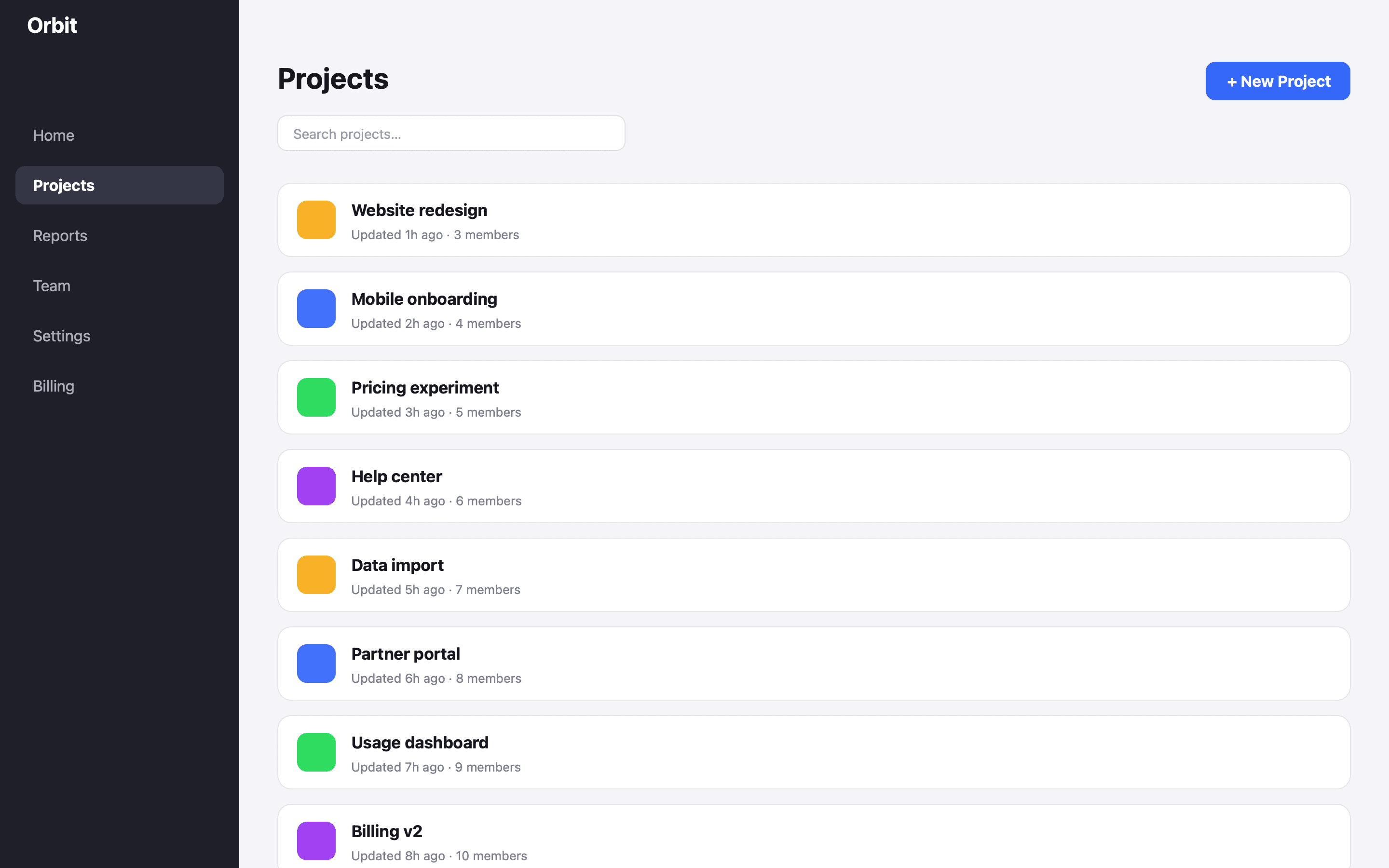
The Orbit project app recorded full screen, with the cursor resting on the New Project button
1.0× What you recorded
The same frame zoomed to 2× on the New Project button, with a ring marking the click
2.0× What ScreenCameo plays on the click

A real frame from a raw ScreenCameo recording, before and after its automatic zoom.

Manual zoom

Press Z to zoom exactly where your cursor is.

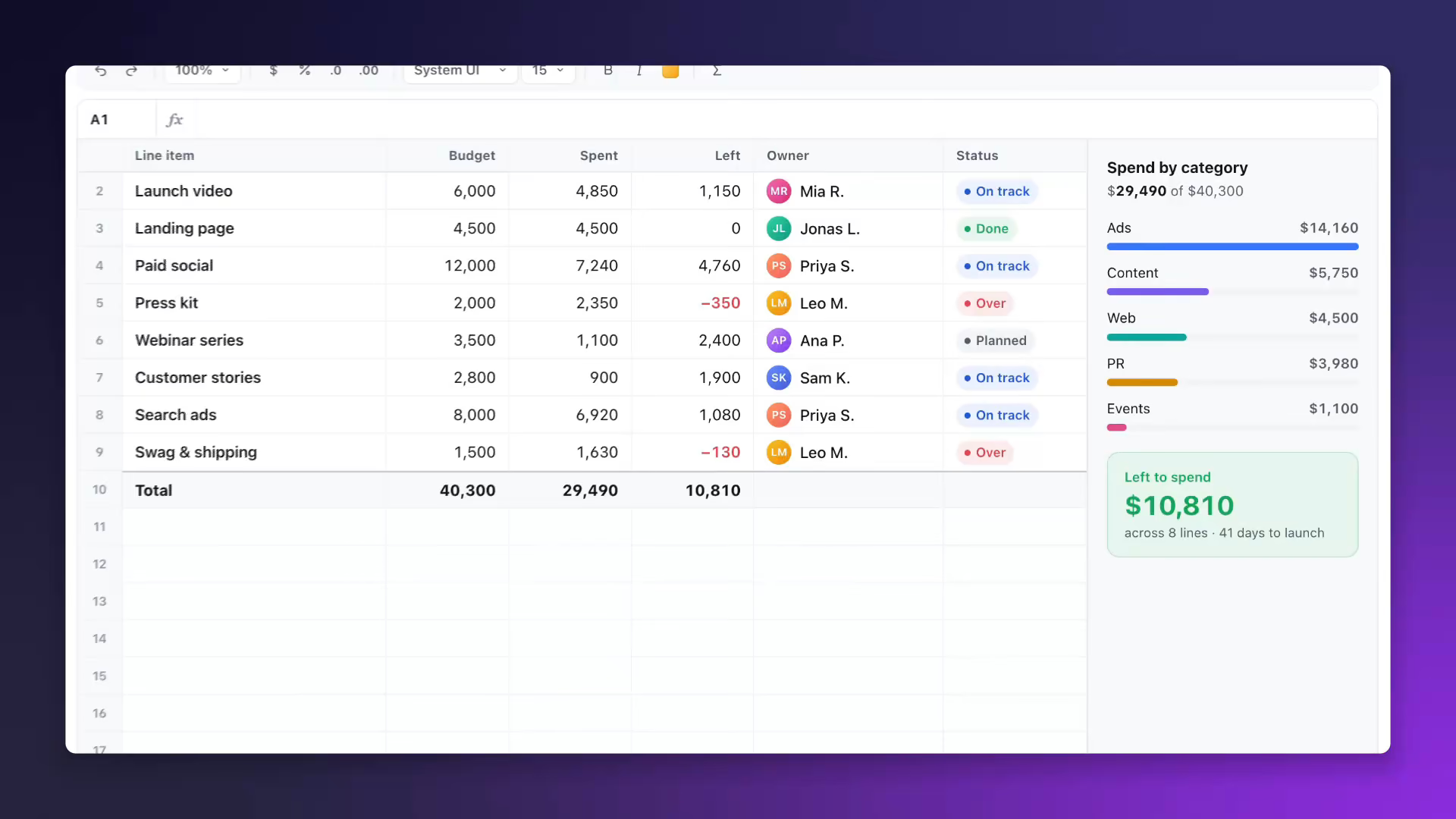
Move the playhead to any moment and press Z. A zoom appears centered on your cursor, starting a beat early so the camera has landed by the time you get there.
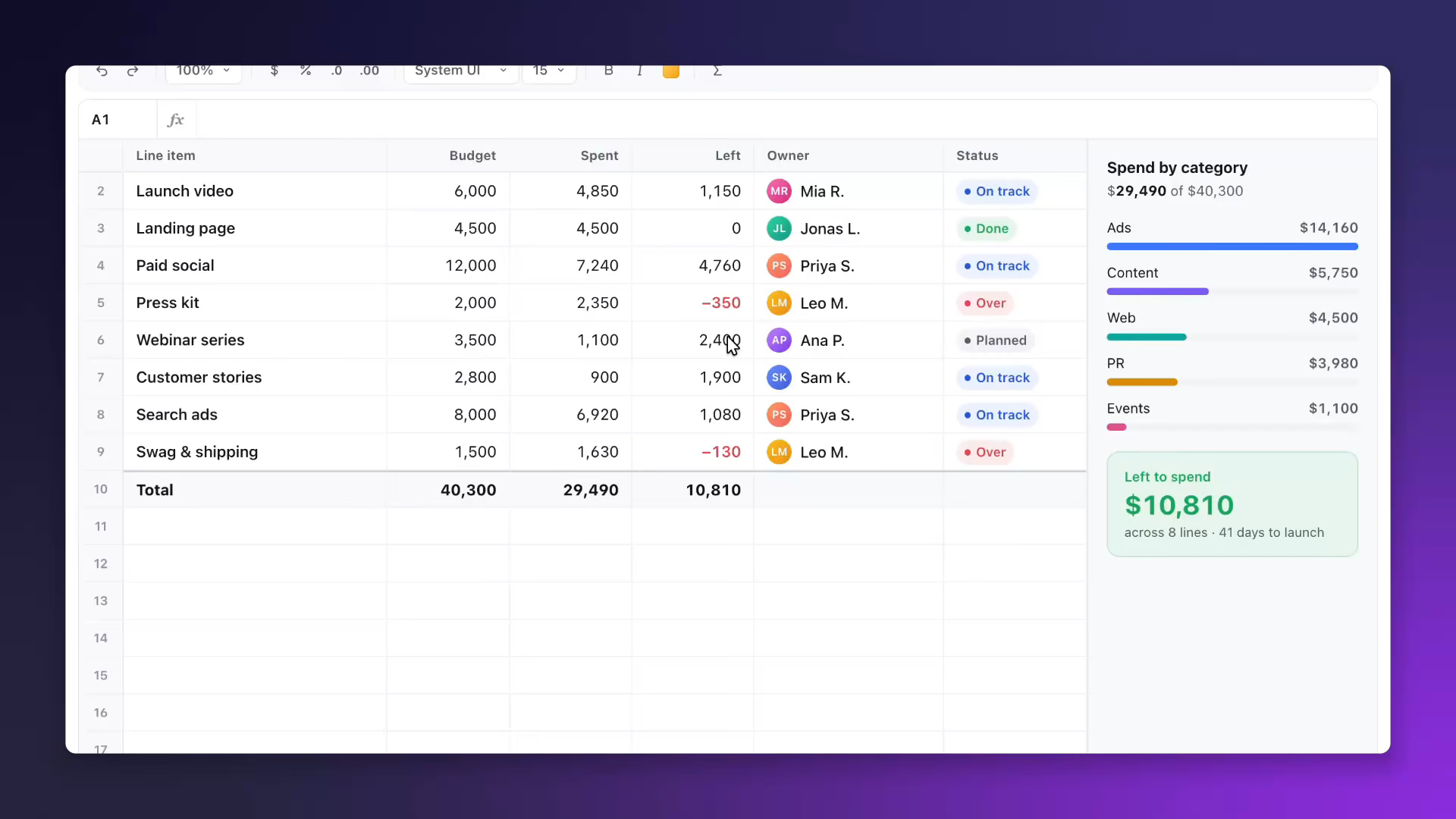
  • Pick 1.25×, 1.5×, 2×, 2.5×, 3× or 4× with one click, or drag up to 6×.
  • Drag the frame on the preview to choose exactly what fills the video.
  • Hold Option to peek at the zoomed result without playing.

Motion

Follow your clicks, or hold perfectly still.

Each zoom can track the action or stay on one spot. Choose the feel once, or per zoom.


  • Follow clicks. The zoom aims at whatever you clicked or typed, then gently follows your cursor.
  • Fixed point. The camera stays put on the spot you choose. Ideal for reading text or a form.
  • Smooth or Focused. Float softly after the cursor, or settle quickly and hold still while zoomed in.
  • Calm, Balanced or Close. One intensity setting decides how far automatic zooms push in.
  • Edges snap. Zooms near the edge of the screen snap to it, so corners are easy to show.
  • Camera makes room. Optionally shrink your camera bubble while zoomed in so it covers less.

Highlight

Spotlight a detail without moving the camera.

Sometimes a zoom is too much. Press H and ScreenCameo dims everything except the area you choose, so eyes go straight to it while the whole screen stays in view.

Any zoom can switch between Zoom in and Highlight from the inspector.
Typing speed-up

Speed through long stretches of typing.

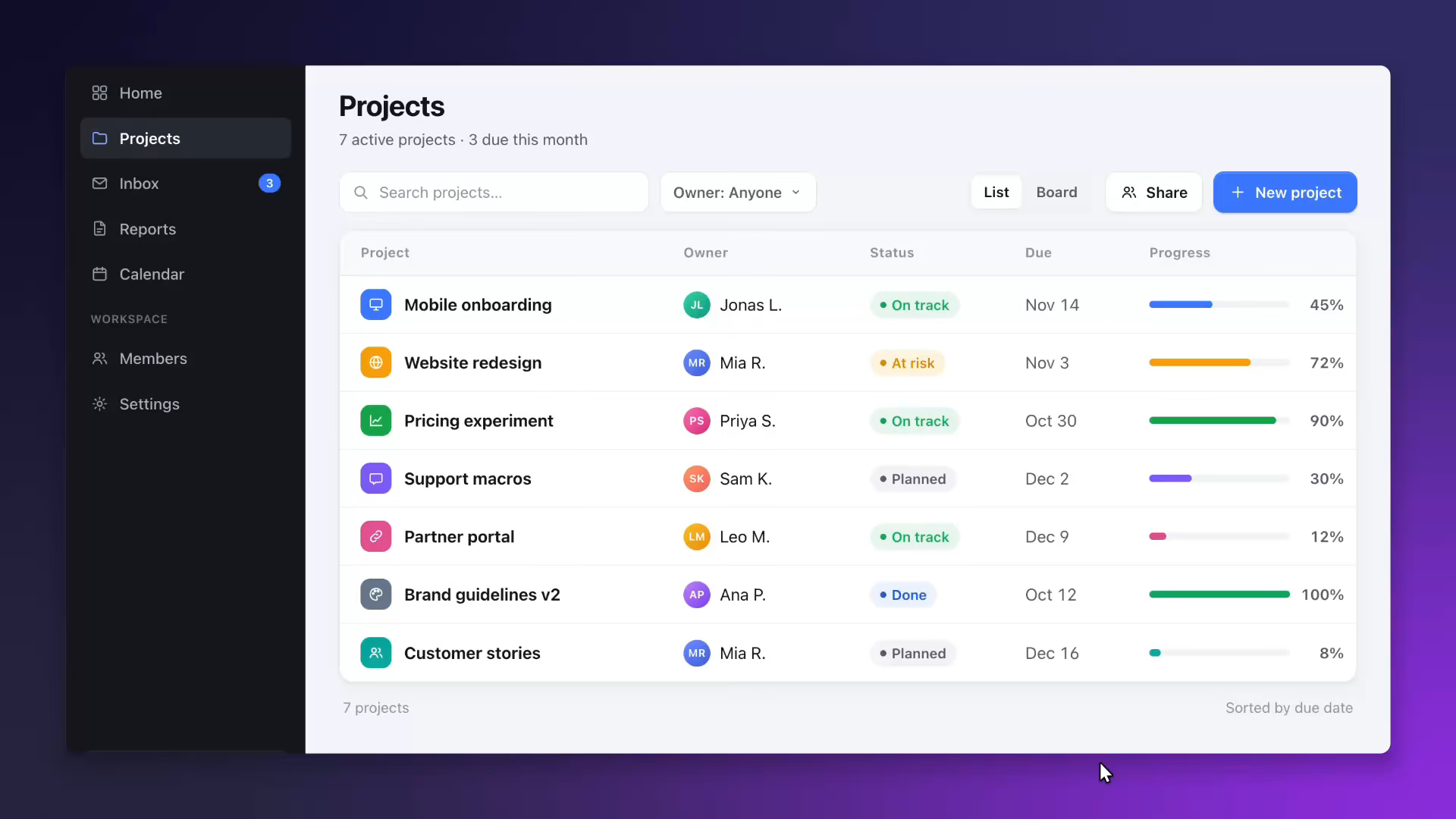
When a recording has a long stretch of typing, a bar above the timeline offers to play it at 2×, 3× or 4×. One click, and viewers no longer wait for every character.

ScreenCameo only notes that typing happened and which shortcuts you pressed. It never saves what you type.
Always in control

Keep the zooms you like and redo the rest.


  • Re-generate. Plan the automatic zooms again without touching the ones you added or edited.
  • Remove automatic zooms. Clear them all in one go and keep only your own.
  • Switch it off. Prefer to zoom by hand? Turn off automatic zooms for new recordings in Settings.
  • Imported clips too. Add zooms to any video you import; drag the dot to aim them.
  • Right-click menu. Disable, duplicate, change the level or make a zoom instant from the Zoom lane.
  • Everything on your Mac. Zoom planning runs locally. Nothing is uploaded, and there is no account.

Start your next recording with ScreenCameo.

ScreenCameo launches soon at $59, paid once. Join the list and you'll get one email on launch day, nothing else.

macOS 26 or later · Up to 3 Macs · 30-day refund

Starring
You, and your cursor
Directed by
Auto-zoom
Cinematography
Smooth cursor & motion blur
Lighting
8 animated backgrounds
Production design
Device mockups with 3D tilt
Camera operator
A camera that dodges your cursor
Film editor
Edit by transcript
Continuity
Multi-clip projects
Second unit
Record Another Take
Title design
Text & title cards
Visual effects
Transitions & highlights
Subtitles
8 caption styles, 12 languages
Sound
Your Mac's audio, no driver
Foley
Click sounds
Stunts
Typing speed-up
Script supervisor
Keystroke overlay
Security
Auto-redact that follows scrolling
Stills
A full screenshot app
Distribution
Every format in one click
Filmed on location
Your Mac, nothing uploaded
Made on a Mac by
Anmol Kulshreshtha

No accounts were created in the making of this video.

Get ScreenCameo for $59

Join the launch list and we'll email you once, the day it's ready. Pay once, keep it forever, use it on up to 3 Macs.